
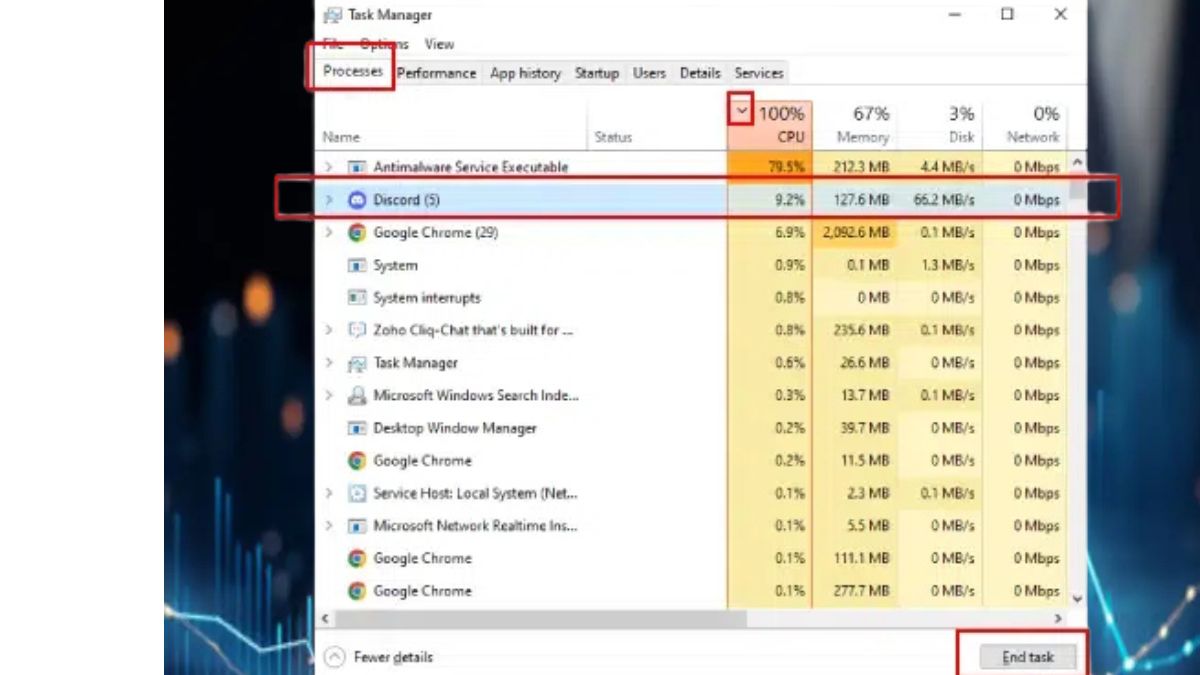
Is your Windows computer running slow, lagging during simple tasks, or making your fans spin loudly? If you check Task Manager and see your CPU stuck at 100% usage, you’re not alone. High CPU usage can severely impact system performance and even lead to hardware damage over time if not addressed.
In this comprehensive guide, we’ll walk you through the top causes of high CPU usage and provide proven fixes that work in 2025 and beyond.
🔍 What Causes 100% CPU Usage in Windows?
Before jumping into solutions, it’s essential to understand what may be causing the issue. Common reasons include:
- Too many background processes
- Malware or crypto-mining software
- Outdated drivers or Windows bugs
- Heavy programs like Chrome, games, or editing tools
- Corrupted system files
- Windows services like Windows Update or Superfetch (SysMain)
Now, let’s look at how to identify and fix these problems step-by-step.
🛠 Step-by-Step Fixes for 100% CPU Usage
✅ Step 1: Open Task Manager
- Press
Ctrl + Shift + Escto open Task Manager. - Click the Processes tab.
- Sort by CPU usage by clicking on the CPU column.
- Identify the process consuming the most CPU.
This will help you pinpoint whether a specific app or system process is the culprit.
✅ Step 2: Restart Your PC
A classic fix that still works. Rebooting your system can:
- Clear temporary processes
- Release stuck services
- Reset CPU allocation
Make this your first go-to solution.
✅ Step 3: Scan for Malware or Cryptominers
Hidden malware can silently consume CPU resources.
How to scan:
- Open Windows Security → Virus & Threat Protection.
- Run a Full Scan.
- Alternatively, use a third-party tool like Malwarebytes or HitmanPro.
If any threats are found, quarantine or remove them immediately.
✅ Step 4: Disable Startup Programs
Many apps launch at startup and hog resources.
To disable them:
- Open Task Manager → Startup tab.
- Right-click on unnecessary apps → Disable.
Apps like Skype, Discord, Spotify, or OneDrive may not need to run automatically.
✅ Step 5: Update Windows and Drivers
Old or buggy drivers and system files often cause CPU issues.
Update Windows:
- Go to Settings → Update & Security → Windows Update
- Click Check for Updates
Update Drivers:
- Press
Windows + X→ select Device Manager - Right-click key drivers (display, network, audio) → Update driver
You can also use tools like Driver Booster to automate this.
✅ Step 6: Adjust Power Settings
Improper power plans can throttle your CPU or keep it maxed out.
To change power plan:
- Open Control Panel → Power Options
- Select Balanced or High Performance
Avoid the Power Saver plan, which can create instability and lag.
✅ Step 7: Disable SysMain (Superfetch)
The SysMain service preloads frequently used apps but can spike CPU usage.
To disable it:
- Press
Windows + R→ typeservices.msc - Scroll to SysMain, right-click → Properties
- Set Startup Type to Disabled → Click Stop
✅ Step 8: Disable Windows Search (Temporarily)
Windows Search indexing may cause 100% CPU usage, especially on HDDs.
To disable:
- Open Services (
services.msc) - Find Windows Search
- Set to Disabled and stop the service
Note: Disabling search may affect the quick search bar functionality.
✅ Step 9: Fix Corrupted System Files
System corruption can lead to high CPU use.
Use these commands in Command Prompt (Admin):
sfc /scannow
After SFC:
DISM /Online /Cleanup-Image /RestoreHealth
These will scan and repair damaged Windows system files.
✅ Step 10: Reset or Reinstall Problematic Apps
If a specific app like Chrome or Adobe is using too much CPU:
- Clear its cache
- Reinstall the app
- Use a lighter alternative (e.g., use Edge or Firefox instead of Chrome)
💡 Pro Tip: Use Resource Monitor for Deep Analysis
- Press
Windows + R→ typeresmon→ hit Enter - Go to the CPU tab
- You’ll see detailed stats like services, threads, and associated handles
This is ideal for advanced users who want to trace down obscure issues.
🔧 Bonus Tips for Advanced Users
🧠 Disable Cortana (If Not Used)
In some versions of Windows, Cortana can cause high CPU usage.
- Press
Windows + R→ typegpedit.msc - Navigate to:
Computer Configuration → Administrative Templates → Windows Components → Search - Double-click Allow Cortana → Set to Disabled
🧼 Clean Dust from Your PC
Sometimes the issue isn’t software—it’s hardware overheating. If your CPU is hot, it might throttle or spin at max capacity.
- Clean dust from vents and fans
- Apply fresh thermal paste (for desktops)
- Upgrade your cooling system if needed
🧩 When to Consider a Hardware Upgrade
If your system is still stuck at 100% CPU usage after all these fixes, and especially if you’re using:
- A dual-core processor from 2010–2015
- 4GB RAM or less
- Mechanical hard drive (HDD)
Then you may need to upgrade your hardware. Consider:
- Adding more RAM
- Replacing HDD with an SSD
- Upgrading to a modern CPU
✅ Final Thoughts
High CPU usage in Windows is a common issue, but it’s almost always solvable with the right combination of fixes. By following the above steps, you should be able to reduce or eliminate 100% CPU usage and restore your computer’s speed and stability.
Proactive maintenance—keeping drivers updated, scanning for malware, and managing startup items—can prevent the problem from returning.
🔎 Frequently Asked Questions
Q: Is 100% CPU usage bad for your computer?
Yes. Prolonged 100% usage can lead to overheating, reduced performance, and shorter hardware lifespan.
Q: Should I reinstall Windows to fix CPU issues?
Only as a last resort. Most cases can be resolved without a full reset.
Q: Can background apps cause high CPU?
Absolutely. Many apps run in the background and consume resources. Use Task Manager to disable or uninstall them.





Greetings! Quick question that’s totally off topic. Do you know how to make your site mobile friendly?
My weblog looks weird when viewing from my apple iphone.
I’m trying to find a theme or plugin that might be able to correct this issue.
If you have any recommendations, please share. Many thanks!
It is perfect time to make some plans for the
future and it’s time to be happy. I have read this post
and if I could I desire to suggest you few interesting things or suggestions.
Maybe you can write next articles referring to this article.
I want to read more things about it!
I think this is one of the most important information for me.
And i am glad reading your article. But should remark on some general
things, The web site style is ideal, the
articles is really nice : D. Good job, cheers
Hey There. I discovered your weblog the use of msn. This is a very
smartly written article. I will be sure to bookmark it and return to learn more of your helpful information.
Thank you for the post. I’ll definitely return.
Hello there! This post could not be written any better! Looking at this post reminds me of my previous
roommate! He constantly kept talking about this.
I will forward this information to him. Fairly certain he’ll have a
good read. Thank you for sharing!
hello there and thank you for your information – I’ve definitely picked up anything new from right here.
I did however expertise a few technical points using this web site, as
I experienced to reload the site a lot of times previous to I could get it to load properly.
I had been wondering if your web hosting is OK? Not
that I’m complaining, but sluggish loading instances times will very frequently affect
your placement in google and can damage your high-quality score if ads and marketing
with Adwords. Anyway I’m adding this RSS to my email and can look out for a
lot more of your respective fascinating content. Make sure you update this again very soon.
I enjoy what you guys are usually up too. This kind of clever work
and exposure! Keep up the wonderful works guys I’ve incorporated you guys to our blogroll.
I am regular visitor, how are you everybody? This post posted at this site is
really good.
Very good post. I’m experiencing some of these issues as well..
Pretty nice post. I simply stumbled upon your blog and wished to mention that I’ve really enjoyed surfing
around your blog posts. After all I will be subscribing on your rss feed
and I hope you write again very soon!
Greetings I am so thrilled I found your web site, I
really found you by accident, while I was searching on Digg for something else,
Nonetheless I am here now and would just like to say thanks for a remarkable post and a all round enjoyable blog (I also
love the theme/design), I don’t have time to read it all at the moment
but I have saved it and also added your RSS feeds, so when I have time I will be back to
read a lot more, Please do keep up the fantastic work.
It’s amazing to pay a visit this site and reading the views of all colleagues concerning this
post, while I am also keen of getting know-how.
It’s truly very complex in this busy life to listen news
on Television, therefore I only use world wide web for
that reason, and take the newest news.
Great web site you’ve got here.. It’s hard to find high-quality writing like yours nowadays.
I seriously appreciate individuals like you! Take care!!
It is the best time to make some plans for
the longer term and it is time to be happy. I have learn this put up and
if I could I wish to counsel you some fascinating things or tips.
Perhaps you could write subsequent articles regarding this article.
I desire to read even more issues about it!
Ahaa, its fastidious conversation about this paragraph here
at this web site, I have read all that, so at this time me also commenting at this
place.
Thanks for your marvelous posting! I certainly enjoyed reading it, you can be a
great author.I will be sure to bookmark your blog and will eventually
come back in the future. I want to encourage you
continue your great job, have a nice morning!