If Microsoft Outlook keeps crashing on Windows 11, you’re not alone. This is a common issue caused by faulty add-ins, corrupted files, outdated software, or profile errors. The good news? You can fix it quickly using the proven methods below.
This optimized guide will walk you through step-by-step solutions to stop Outlook crashes and improve performance.
Why Does Outlook Keep Crashing in Windows 11?
Before fixing the issue, it helps to understand the causes:
- Corrupted Outlook profile or data files (PST/OST)
- Faulty add-ins (plugins)
- Outdated Outlook or Windows 11 version
- Conflicts with other programs
- Hardware acceleration issues
1. Open Outlook in Safe Mode (Quick Fix)
Starting Outlook in Safe Mode disables all add-ins and helps identify the root cause.
Steps:
Press Windows + R
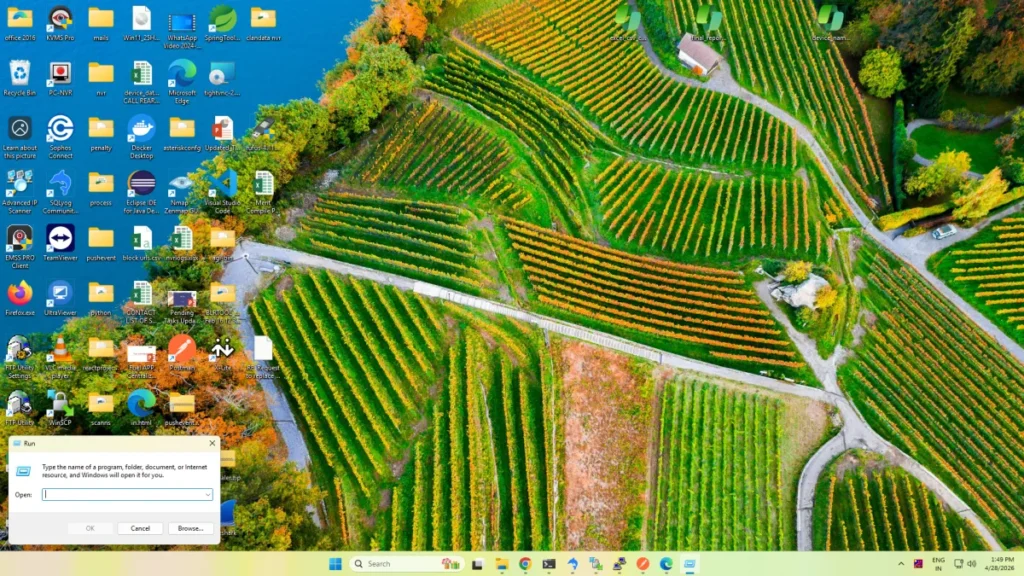
Type: outlook.exe /safe
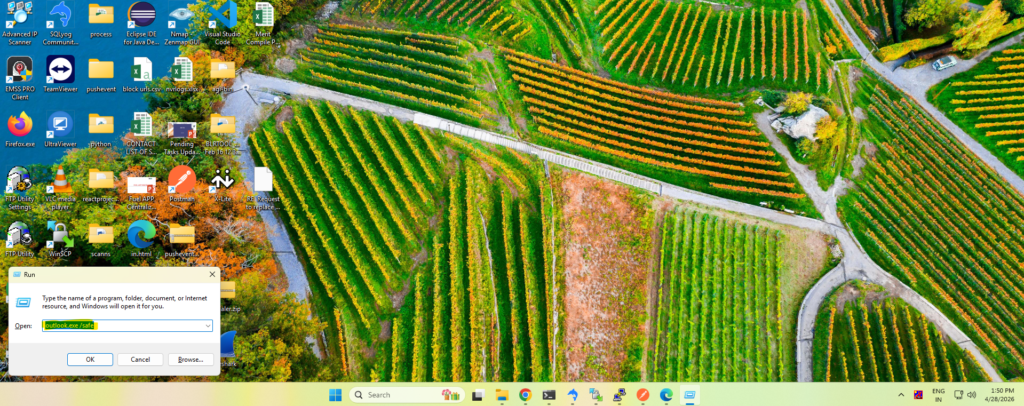
- Press Enter
- Select your profile and click OK
👉 If Outlook works fine in Safe Mode, add-ins are likely causing the crash.
2. Disable All Outlook Add-ins (Most Effective Fix)
Add-ins are the #1 reason Outlook crashes repeatedly.
Steps:
- Open Outlook (or Safe Mode)
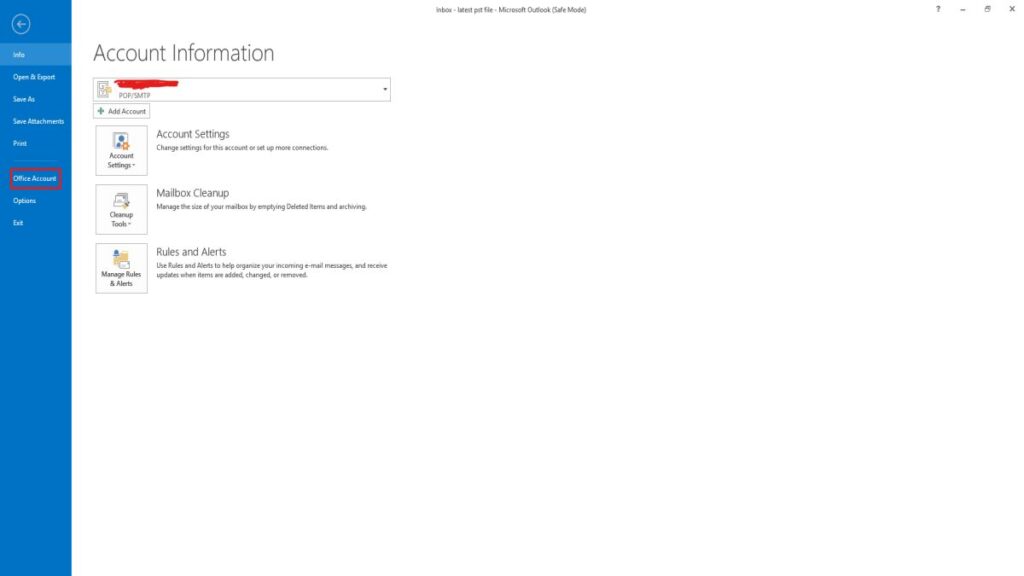
- Go to File > Options > Add-ins
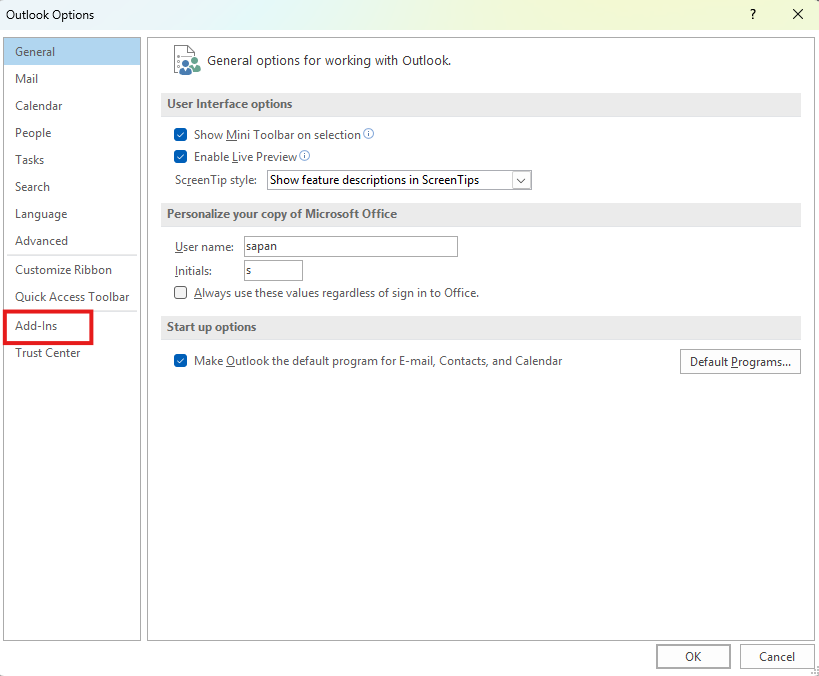
- Select COM Add-ins and click Go
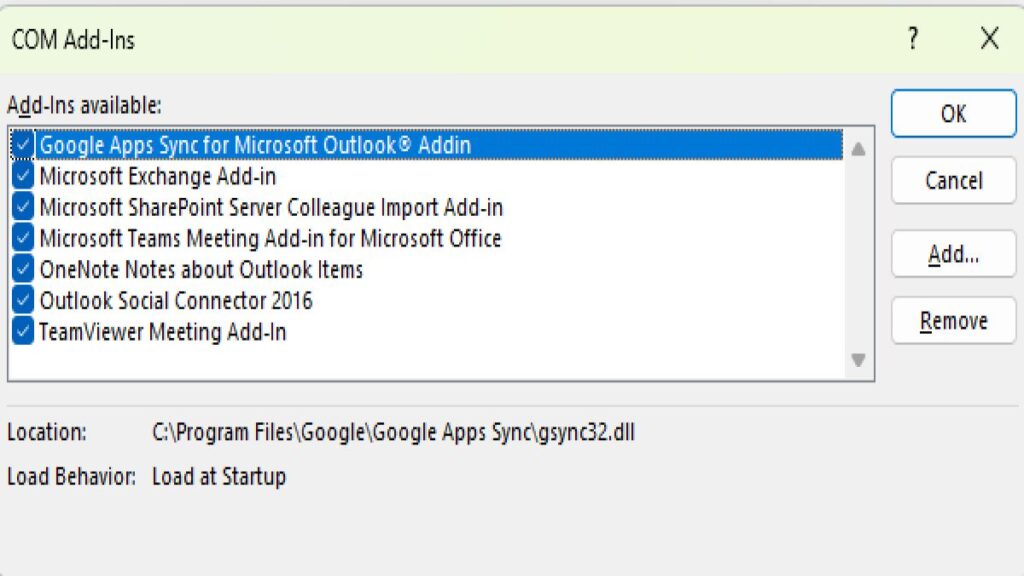
- Uncheck all add-ins
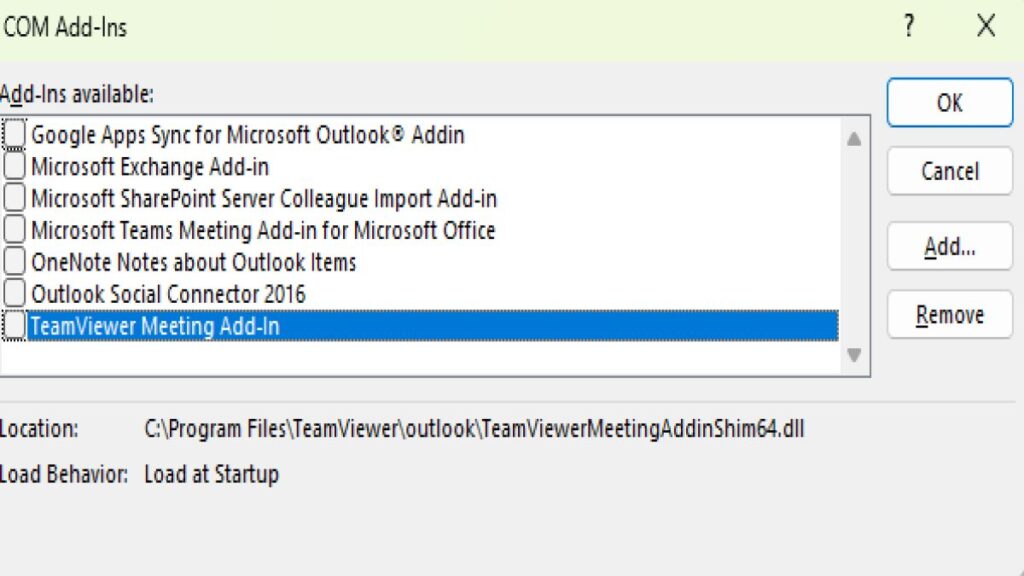
- Click OK and restart Outlook
💡 Tip: Re-enable add-ins one by one to find the problematic plugin.
3. Restart Your Windows 11 PC
A simple restart can fix temporary system conflicts.
- Close Outlook
- Restart your computer
- Reopen Outlook
4. Update Outlook and Windows 11
Running outdated software can trigger crashes.
Update Outlook:
- Go to File > Office Account > Update Options > Update Now
Update Windows 11:
- Open Settings > Windows Update
- Click Check for updates
5. Repair Microsoft Office (Fix Corrupted Files)
Repairing Office can resolve crashes caused by damaged files.
Steps:
- Open Control Panel
- Go to Programs > Programs and Features
- Select Microsoft Office
- Click Change
- Choose:
- Quick Repair (fast)
- Online Repair (deep fix)
6. Create a New Outlook Profile
A corrupted profile can cause Outlook to crash on startup.
Steps:
- Open Control Panel > Mail
- Click Show Profiles
- Click Add and create a new profile
- Set it as default
- Restart Outlook
7. Repair Outlook Data Files (PST/OST)
If your data file is corrupted, Outlook may crash frequently.
Steps:
- Search for SCANPST.EXE (Inbox Repair Tool)
- Open the tool
- Select your Outlook data file
- Click Start to repair
8. Disable Hardware Graphics Acceleration
Graphics issues can also lead to Outlook crashes.
Steps:
- Open Outlook
- Go to File > Options > Advanced
- Under Display, enable:
Disable hardware graphics acceleration
9. Reinstall Microsoft Outlook (Last Option)
If nothing works, reinstalling Outlook can fix deep system issues.
Steps:
- Uninstall Microsoft Office
- Restart your PC
- Reinstall the latest version
- Sign in and set up your account
Pro Tips to Prevent Outlook Crashes
- Keep Outlook and Windows updated
- Avoid installing unnecessary add-ins
- Regularly back up PST files
- Use antivirus software to prevent malware issues
Conclusion
Fixing Outlook crashes in Windows 11 doesn’t have to be complicated. Start with Safe Mode, disable add-ins, and update your system. In most cases, these steps will resolve the issue quickly.
If the problem continues, repairing Office or creating a new profile usually does the trick.
Read More
Windows 11 Storage Full Fix (100% Working) – Fix Unknown Space Issue 2026