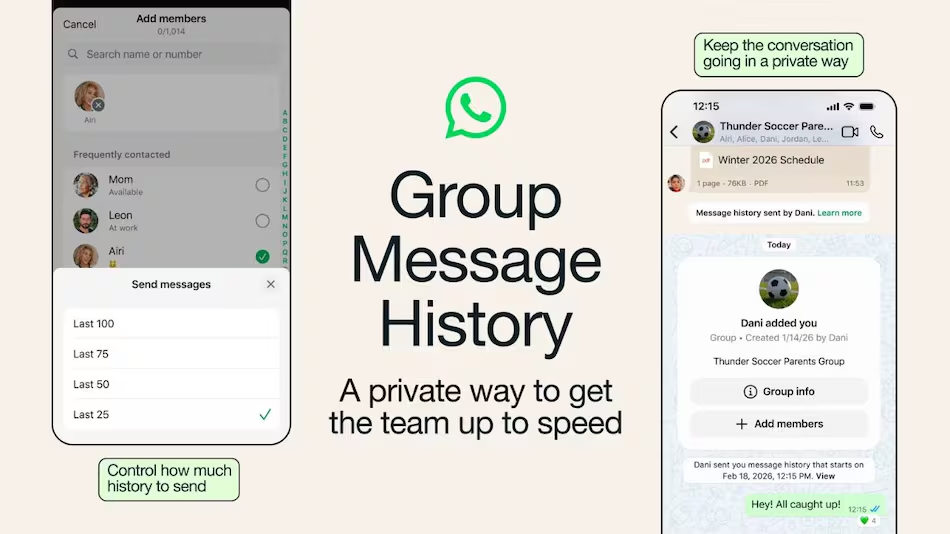
How to Send WhatsApp Message History in a Group : WhatsApp is one of the most widely used messaging apps worldwide, and group chats often contain important conversations, files, decisions, and memories. But sometimes, users need to share or transfer WhatsApp message history to a group for reference, backup, or documentation purposes.
In this guide, you’ll learn how to send WhatsApp message history in a group on Android and iOS step by step, along with alternative methods, limitations, and pro tips.
What Does “Sending WhatsApp Message History” Mean?
Before we begin, it’s important to understand what you can and cannot do:
You cannot directly import or upload full chat history into a WhatsApp group like a file.
However, you can share message history using:
- Export chat feature
- Forwarding messages
- Copy-paste method
- Sharing media files manually
📱 Method 1: Export WhatsApp Chat and Share in Group (Best Method)
This is the most official and reliable method.
🔹 On Android
Step 1: Open WhatsApp
Launch the WhatsApp app on your Android device.
Step 2: Open Chat
Open the chat whose history you want to send.
Step 3: Tap More Options
Tap the three-dot menu (⋮) in the top-right corner.
Step 4: Select “More”
Tap More > Export Chat
Step 5: Choose Export Option
You will see two options:
- Without Media
- Include Media
Choose as per your need.
Step 6: Share to Group
Select:
- Choose the group you want to send it to
✔ The chat will be sent as a .txt file (and media files if selected)
🔹 On iOS (iPhone)
Step 1: Open WhatsApp
Launch WhatsApp on your iPhone.
Step 2: Open Chat
Go to the chat you want to export.
Step 3: Tap Contact Name
Tap the contact or group name at the top.
Step 4: Scroll and Tap “Export Chat”
Scroll down and tap Export Chat.
Step 5: Choose Option
Select:
- Attach Media
- Without Media
Step 6: Share to Group
Choose WhatsApp and select the group.
✔ Chat history is shared as a file.
📤 Method 2: Forward Messages in WhatsApp Group
If you only need selected messages:
Steps:
On Android/iOS:
- Open chat
- Long press message
- Tap Forward
- Select multiple messages if needed
- Tap forward icon
- Choose group chat
✔ Best for sharing specific important messages instead of full history.
📋 Method 3: Copy and Paste Chat History
Steps:
- Open WhatsApp chat
- Long press message
- Tap Copy
- Open group chat
- Paste message
- Send
✔ Useful for small text-based history
❌ Not suitable for large conversations
📁 Method 4: Share Media Files Separately
If your chat history includes important media:
- Photos
- Videos
- Documents
Steps:
- Open chat
- Tap media file
- Tap Share
- Select WhatsApp group
✔ Keeps media quality intact
✔ Better for documents or proofs
💡 Best Practices (Pro Tips)
✔ Use “Export Chat without Media” for fast sharing
✔ Use forwarding for selective information
✔ Compress media if file size is large
✔ Always verify privacy before sharing chats
✔ Avoid sharing sensitive personal conversations